
Accessibility Features - Alternate Format Download
What is document file conversion?
The “alternate format” conversion option allows you to access learning resource in your myLearn units such as PowerPoint presentations, PDFs or myLearn pages into alternate formats that are more useful for you.
You can convert the PDFs, slides and lecture notes into formats that work best for you such as
- MP3 (audio) files
- E-books
- Digital Braille books
- Structured audio books in DAISY and e-books with media overlay
Once you have logged into myLearn and entered your unit, you will see a new icon at the end of the file resources name as in the below screenshot

How do I use the file conversion tool?
- Log into myLearn and enter your course
- Find the required file on your myLearn course
- Select the file conversion icon
- Choose your new file format
Select how you would like your file to be converted by choosing Type and other appropriate settings and select Request.
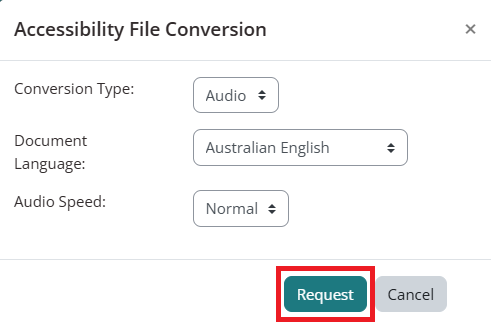
- If your file has already been converted to your requested format, the file will download immediately.
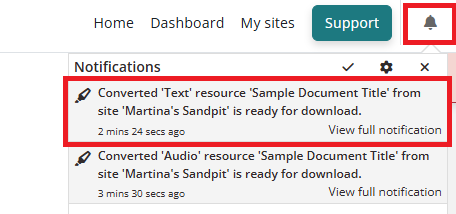
- If this was the first time it was requested, conversion is queued, and you will be told content retrieval in progress. You will be notified when the file is available in myLearn (or via email to your student account).
Note:
Depending on the size of the file resource it may take a couple of minutes to generate or longer in some cases. A notification will appear onscreen when the process is complete.
What alternate formats are there?
Text formats
The File Convertor can change the format of file PDF, Word Documents, PowerPoint type resources into alternate text-based formats such as Word – Doc, or DOCX, RTF (Rich Text Format), Tagged PDF, HTML, Plain text and others depending on the source file.
Depending on the document type of the source document, a number of conversion options are available for automated document remediation.
MP3 Audio Files
Audio files in MP3 are great for people who want to read whilst on the move. MP3 files can also be used as an accommodation for people with blindness, low vision, or dyslexia. Furthermore, MP3 files can be used by mainstream users such as flexible learners and foreign-language learners to support learning. MP3 is a format that is well-known to users and most users will have some kind of device that is capable of playing back MP audio files, e.g., their smartphone.
E-Books
E-books are reflow-able and allow users to change everything about their visual appearance. E-books can be scaled up without breaking the margins, fonts can be substituted, the background and foreground colour combination can be changed, as can the contrast, lines spacing, and scrolling direction to match the individual needs and preferences of the user.
The File Convertor can convert documents into a number of different formats: EPUB is a standardised format supported by most e-book readers. Mobi Pocket is an e-book format supported by Amazon. EPUB3 is the latest version of EPUB and supports sophisticated content such as mathematical equations.
DAISY Structured Audio Books
DAISY books are structured audio books. Using a DAISY reader, the text is highlighted as the user reads. In addition, the user can navigate the document using the heading structure, pages and page numbers. Users can also insert bookmarks and change the visual appearance of the book.
The File Convertor can convert accessible documents into structured audio books in the DAISY format. Source documents must be submitted as Word documents and must comply with the formal accessibility requirements.
Braille
The File Convertor can transcribe documents into Braille according to a number of (national) Braille systems and contraction levels. Furthermore, SensusAccess can format and paginate Braille, and deliver the resulting files as either portable Braille or Braille encoded for a particular Braille device or Braille character set.
Transcribed documents can subsequently be embossed on a Braille embosser, displayed on a Braille display connected to a computer or smartphone, or loaded on to a Braille notetaker.
Browser Accessibility
Use the “TT” link along the top of your myLearn site to access information on customising your browser’s accessibility features (font size, contrast etc) as well as for information on creating accessible documents in various formats
