echoVideo for Students: How to Submit a video assignment
If you require assistance regarding EchoVideo and it is not captured in these available guides, please contact your Unit Coordinator.
6. Embedding echoVideo into Mylearn
Embedded videos can be placed into any online text editor within myLearn. This can include such activities (and not limited to):
- Forum posts
- Assignments
- Quizzes
You may have used echoVideo software, such as universal capture, or already have your video uploaded into echoVideo Library if so start at Step 2: Embed.
Written Instructions
- Upload media to echoVideo Library
- Embed and save
Step 1: Upload media to echoVideo Library:
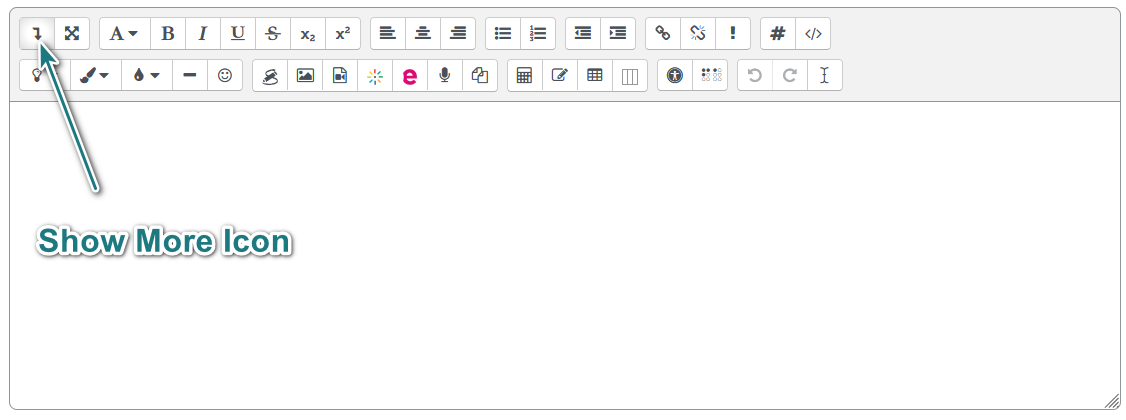
In the editor, click on the Show More/Expand tool (the first tool) of the
Online Text Editor toolbar to expand the toolbars
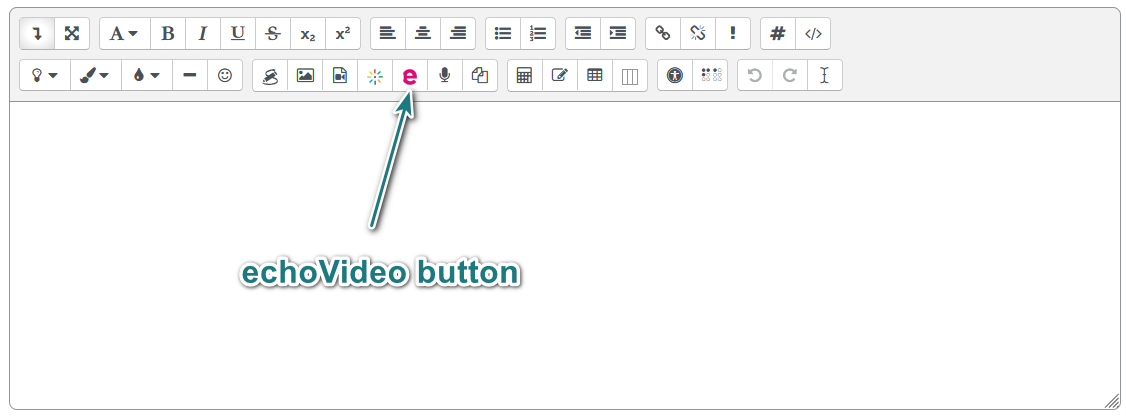
Click on the echoVideo Embed tool on the second toolbar
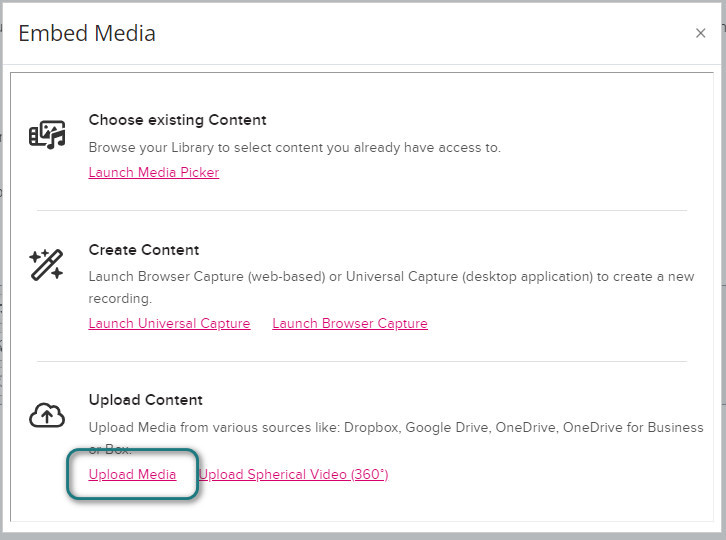
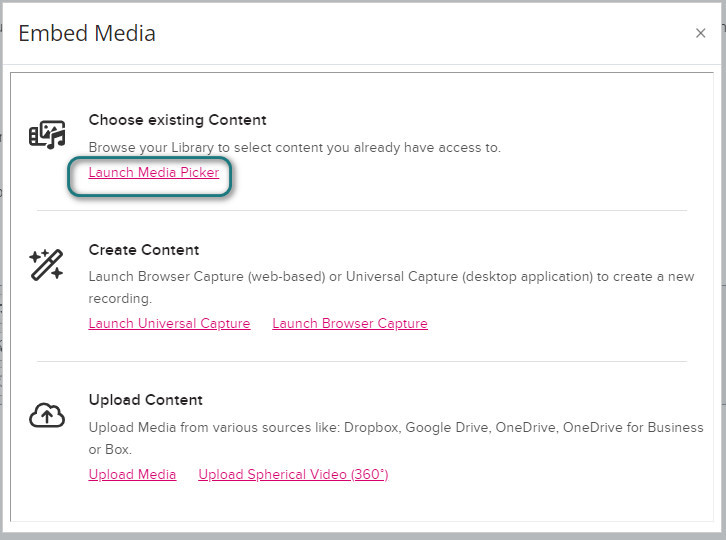
In the Embed Media popup, under "Upload Content" select Upload Media to upload your media to your Echo360 Library
Drag and Drop your file onto the upload panel -or-
click the add button  to select the file from your device
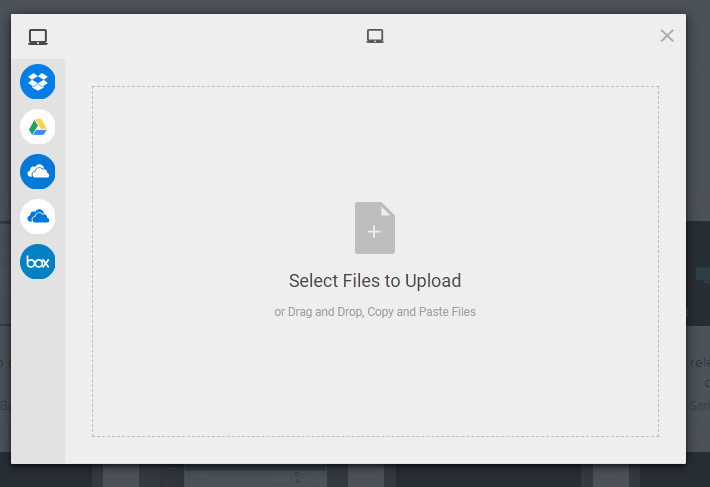
Click the Upload button. When complete, return to the Embed Media section for Step 2.
Step 2 Embed:
You are now back in the Embed Media popup. Under Choose existing Content select Launch Media Picker
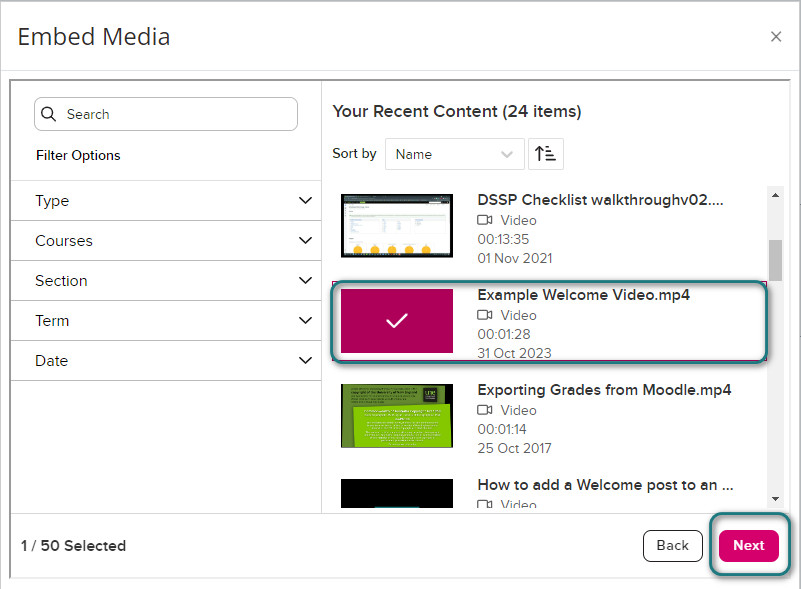
Select your video and click the Next button
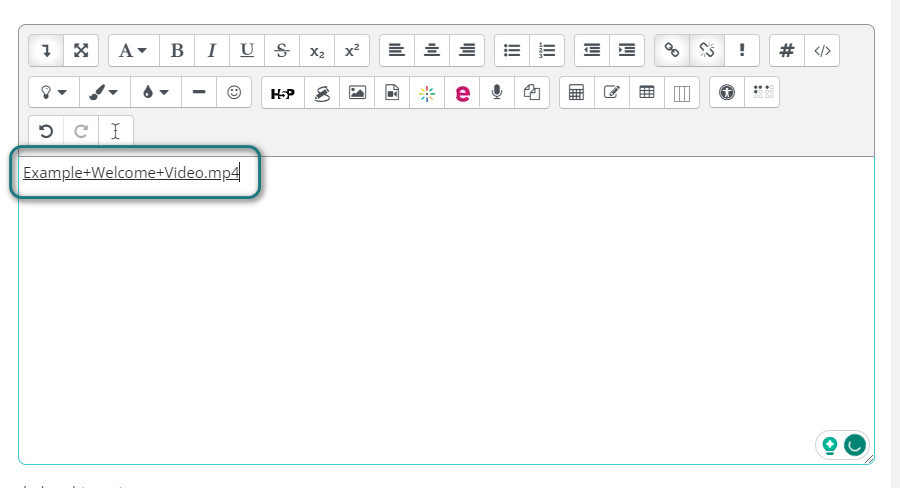
You now have an Embed Link in the Online Text Editor
Click the Save Changes button below the editor
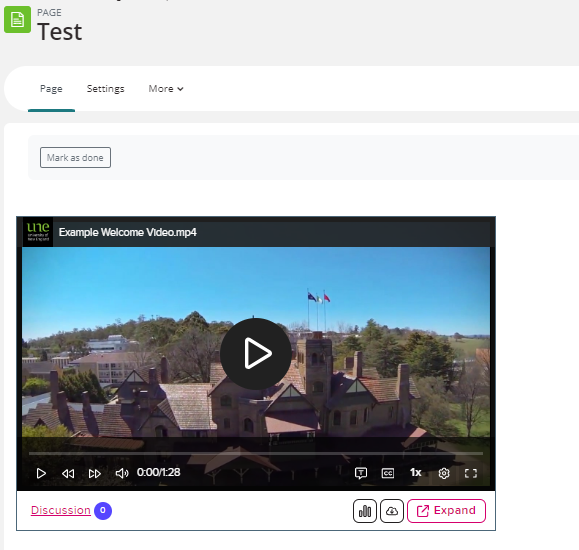
Once you have followed the steps, the video should display like this.