
Annota - NOT YET LIVE
UNE has developed Annota, an AI-powered online academic support service to complement the services available to students through the Academic Skills Office, First Year Advisors and college and school based peer support.
Annota is free for all UNE students. There is no limit on the number of times you can use Annota to obtain writing feedback. check you are on the right track, and feel more confident about your writing and referencing. Feedback shows you where you might focus attention.
Accessing Annota (NEEDS UPDATING)
There are three ways to connect to Studiosity.
1. Click on the link
If there is a link in your unit site, you will find it in the "Unit Information and Resources" section (usually the first tile in unit). Simply click on the link to access the service.
SCREENSHOT
2. From the Support page
Click on the Support button at the top of any myLearn the page 
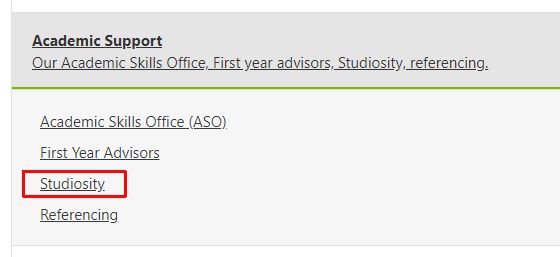
Expand the Academic Support section and click Studiosity.
3. Click on the button at the top of this page
How to use Annota?
Once you click into Annota, you will see the following landing page:
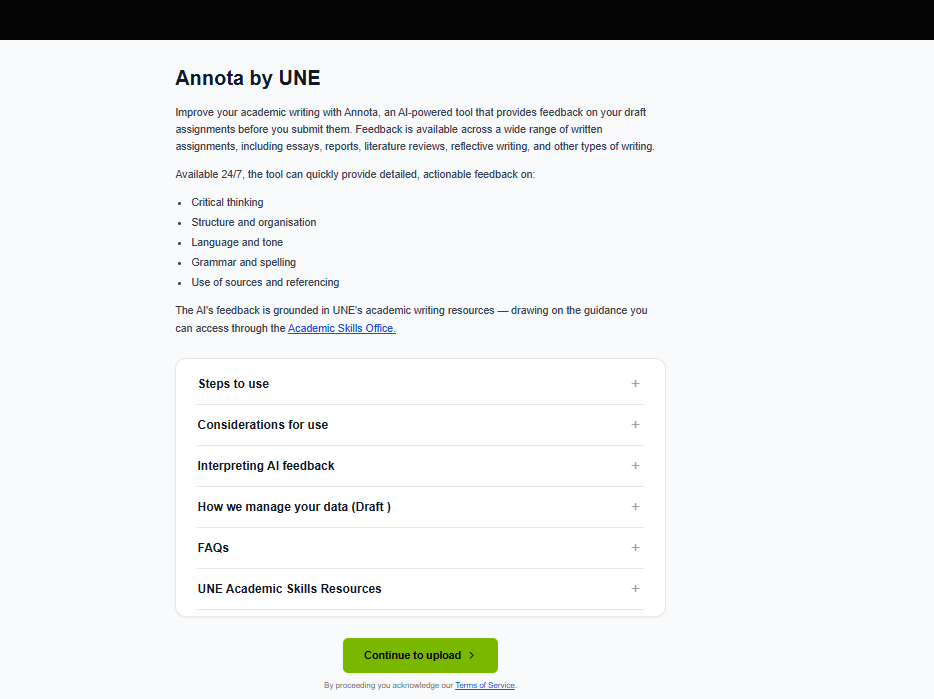
Students are automatically logged in when accessing Annota through myLearn, no additional login is required. Please note that, by continuing to the upload page, you agree to the Annota Terms of Service. Please review the terms before continuing.
Once you enter the site, complete the information on the submission form:
- Assessment Name: Give your submission a name, eg "Unit Code - Assessment - Draft 1". This will help you identify your document in your Drafts folder if you need to refer to it in the future
- Your Draft: Upload your draft, or copy and paste text into the box provided
- Document Type: Select the closest applicable type (Essay, Scientific Report etc) from the option. This will give the feedback agent some context for your submission
- Referencing Style: Select the appropriate referencing style to guide the feedback agent
- Assignment Instructions: Optional, but Annota's feedback will be a lot more tailored to the task if it has the context of the assessment task. Upload a document or paste information in the box
- School: This is for statistical purposes only. Your school or unit coordinator will not be able to see your draft(s) or any of the feedback Annota provides.
Submit your document. Feedback will be returned a few minutes later, with a summary of the feedback on the right, and in-line detailed feedback, tagged by theme, along the left-hand side
